Docker Setup[recommended]
Setup
To complete these steps you will need to have docker working on your machine. We recommend you follow the steps here: https://docs.docker.com/engine/install/ubuntu/ and verify your install with:
sudo docker run hello-world
To avoid entering sudo, run the following:
sudo usermod -aG docker ${USER}
su - ${USER}
You will also need to install docker-compose. Instructions can be found here: https://docs.docker.com/compose/install/.
Note that if you have already installed the version V1 of docker compose, we recommend to update it to V2. Update scripts to use Compose V2 by replacing the hyphen (-) with a space, using docker compose instead of docker-compose.
HARMONI Install
Clone the repository:
git clone https://github.com/micolspitale93/HARMONI.git
cd HARMONI
git checkout dev/harmoni2.0
(optional) Pull the containers:
You may either build or pull containers to run harmoni. Pulling containers is generally faster and can be done as:
docker pull harmoni02/harmoni2.0:full
Note: If you would like to use all the containers we have provided a script in dockerfiles/pull_images.sh for getting all the current images, which includes both kinetic and noetic. If you run a compose file without pulling, the images will be automatically built.
For additional information on building or running harmoni containers, see dockerfiles/README.md.
(optional) Some Harmoni interactions require accounts with cloud services (Such as Amazon Polly). If you do not already have them set up, set up cloud services/keys. Instructions are in the Cloud Services section.
Run HARMONI
(optional) In order to run with window forwarding on linux use:
xhost +local:Note: For Windows you will need to set up docker with WSL2
Use docker compose to launch the complete system (will build if necessary, use –build to force):
docker compose -f docker-compose-basic.yml up
*Note: If you would like to install the full HARMONI V2 modules, you need 20 GB of space. The image pulling and compose of the container will take around 2 hours (depending on your internet connection). In can you want to pull and build all the available HARMONI images you should run:
docker compose -f docker-compose.yml upIf the terminal prints: “Hello, rosmaster”, you successfully setup the HARMONI full container.
If you have pulled and run the docker compose correctly, you should see something as follows: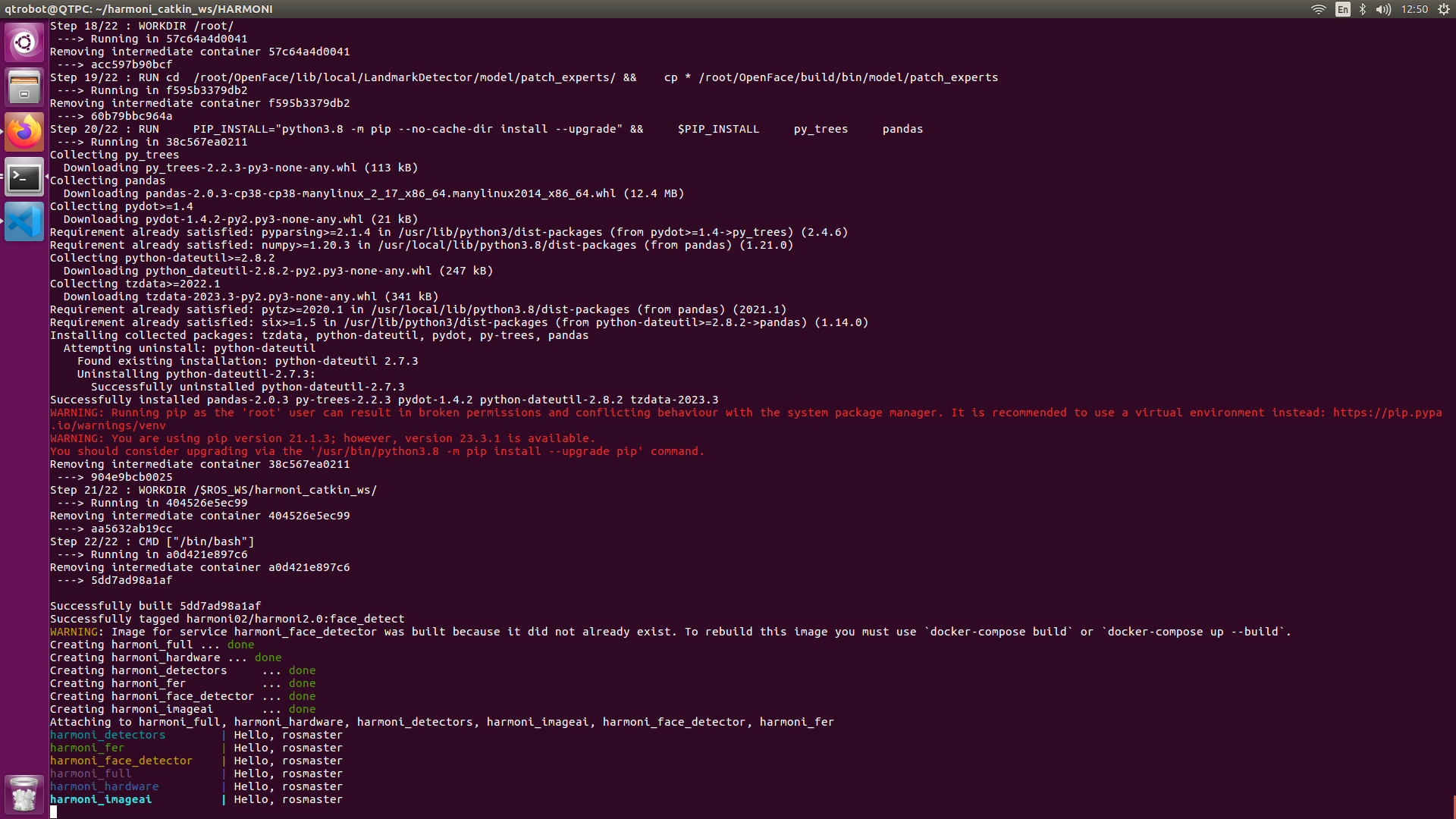
Note: We provide a bash script for launching multiple containers called run_compose.sh
Open a new terminal. To get into this container, you will need to run the following to mount a terminal into the container:
docker exec -it harmoni_full bash
Note: if you wish to connect to other containers, simply replace harmoni_full with the other containers name, e.g. harmoni_hardware
If this is successful, you will see:
Hello! Welcome to Harmoni 2.0
11:47 AM [develop] ~/harmoni_catkin_ws/src/HARMONI :
root@harmoni_full#
Then change the branch to set it to HARMONI 2.0 with the following command:
git checkout dev/harmoni2.0
*Note: If you cannot see [dev/harmoni2.0], please follow the instructions in the Troubleshooting section below (step 1)
Make sure that all the packages are build correctly. Build all the packages following these commands:
catkin build
source ../../devel/setup.bash
From this point you may launch
roscoreor any other ros or harmoni command. Note: You will need to do this step for every process you wish to run in the container. If multiple terminal processes are required, you will need to connect multiple terminals to the docker instance with the docker exec command above
If theroscorerun is successful, you will see:started core service [/rosout]
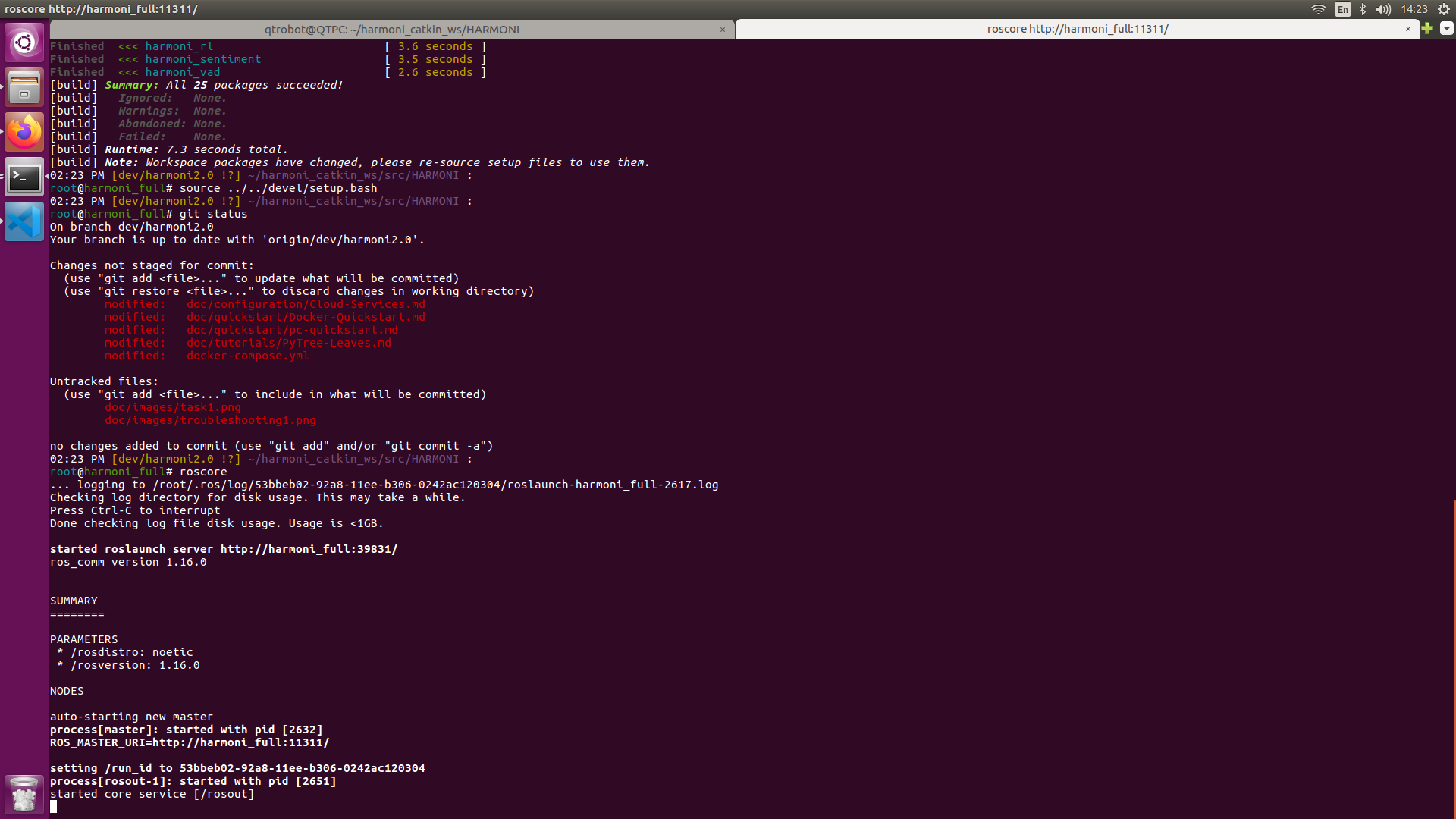
If you want to use also the other containers, repeat the same process, and remeber to build (step 5) the catking packages in all containers opened.
You are now set up for Harmoni with Docker! Check on your configuration here and then start some services here.
Troubleshooting
If you cannot see [dev/harmoni2.0], and you see the screen below:
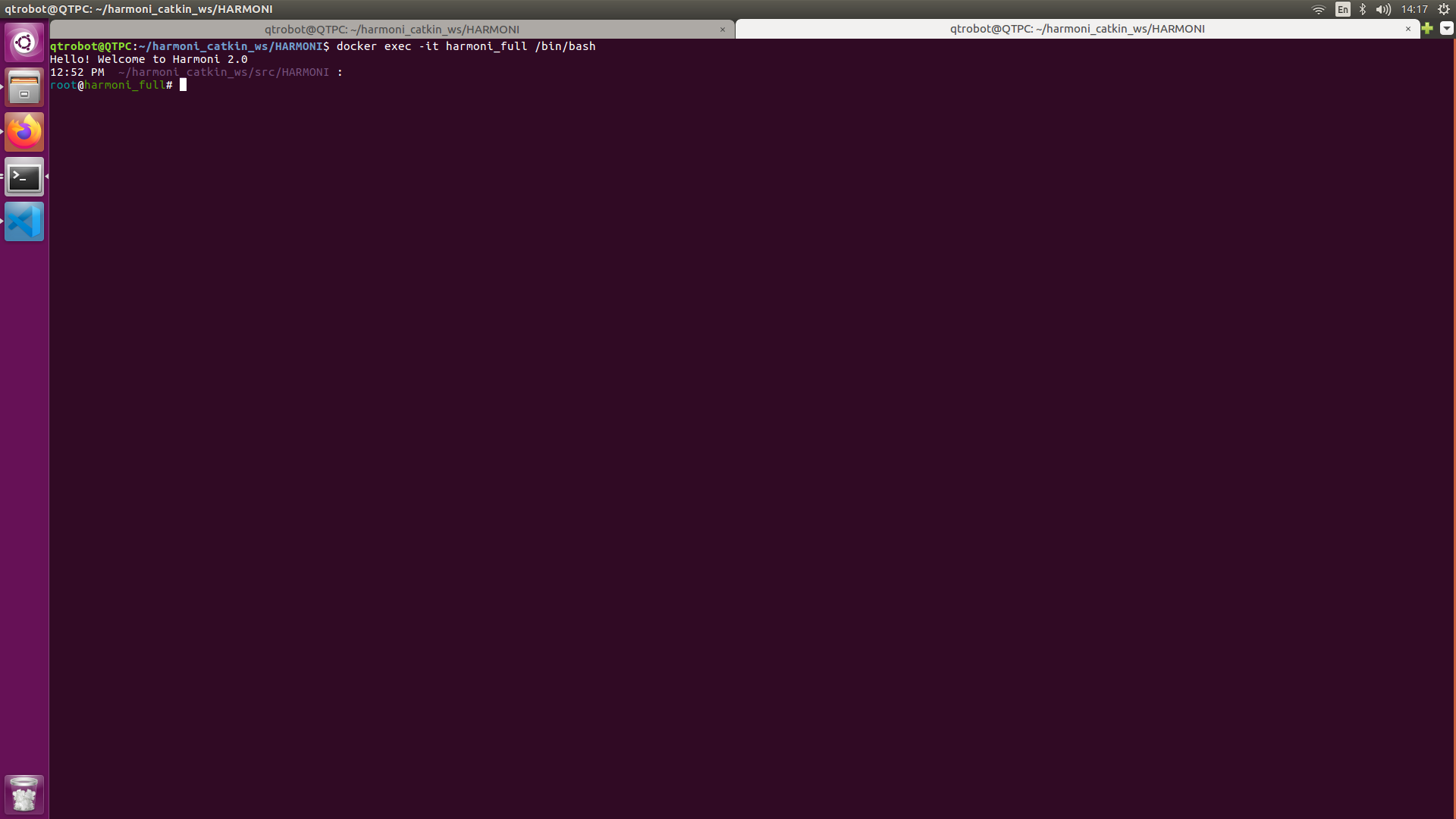 Please run the following commands:
git config --global --add safe.directory /root/harmoni_catkin_ws/src/HARMONI